
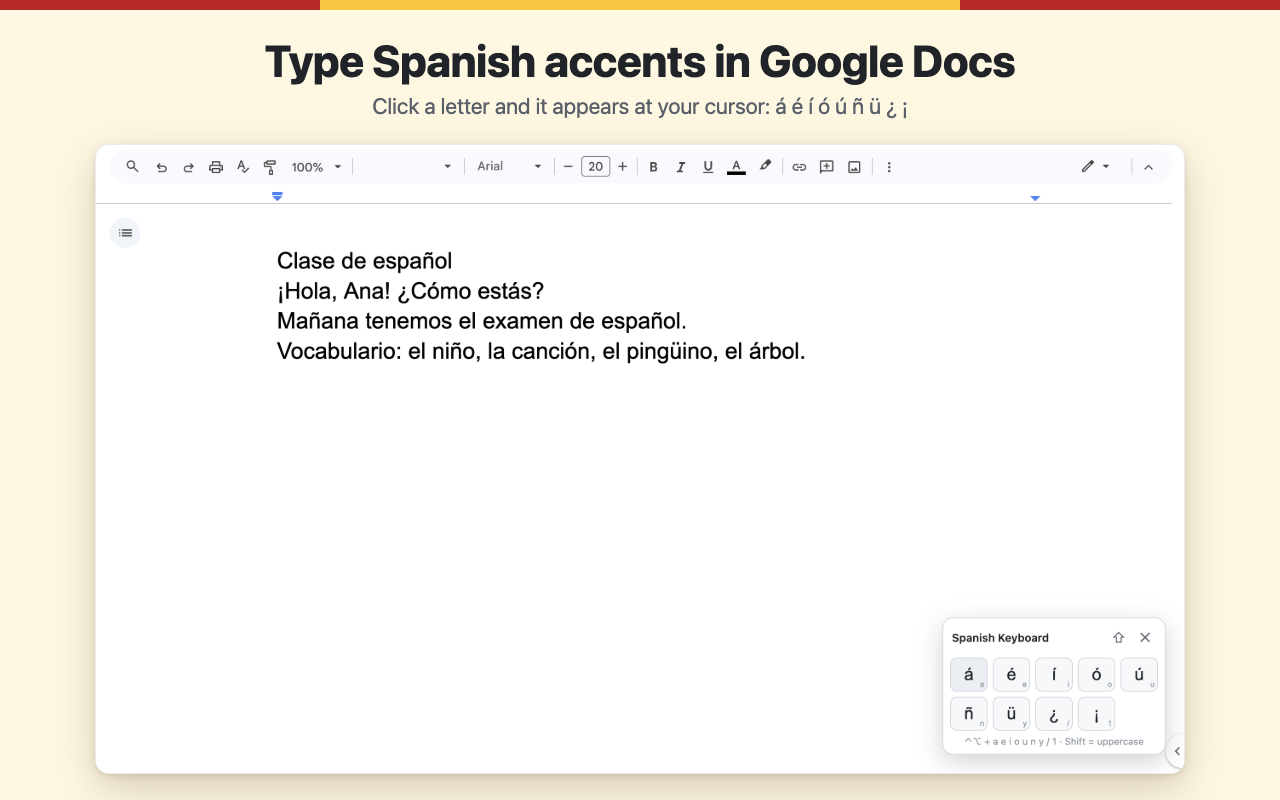
Spanish accents and the Spanish keyboard, without switching layouts
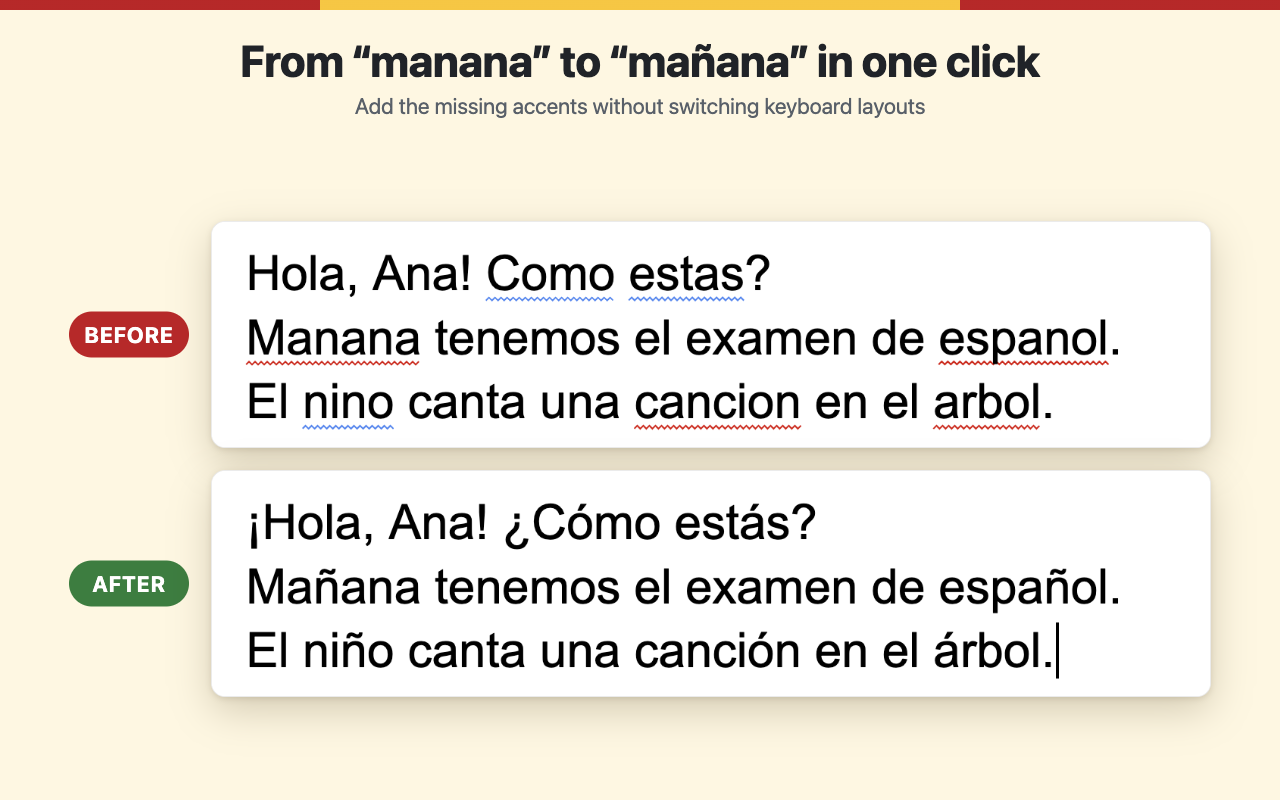
Spanish Keyboard adds a small panel to any web page. Click into a text box, click a letter on the panel, and the character is inserted at your cursor — including in the middle of a word — and you can undo it with Ctrl+Z / Cmd+Z like normal typing. It is made for anyone who needs Spanish accent marks, the letter ñ (n with tilde) and the inverted question and exclamation marks ¿ ¡ on a keyboard that does not have them.
How to use it
- Click the Spanish Keyboard icon in the Chrome toolbar, or press
Alt+Shift+K(Option+Shift+Kon a Mac). - Click into the text field where you want to type.
- Click a letter on the panel. Press ⇧ once, or hold Shift while clicking, for a capital (á → Á).
Keyboard shortcuts while the panel is open
| Key | Types | Mac | Windows, Linux, Chromebook |
|---|---|---|---|
| a e i o u | á é í ó ú | Control + Option + key (add Shift for capitals) | Alt + key (add Shift for capitals) |
| n | ñ | ||
| y | ü | ||
| / and 1 | ¿ and ¡ |
On a Mac, plain Option + letter is left alone, so your normal Mac layout keeps working. If a shortcut clashes with your browser or system, just click the buttons.
Where it works
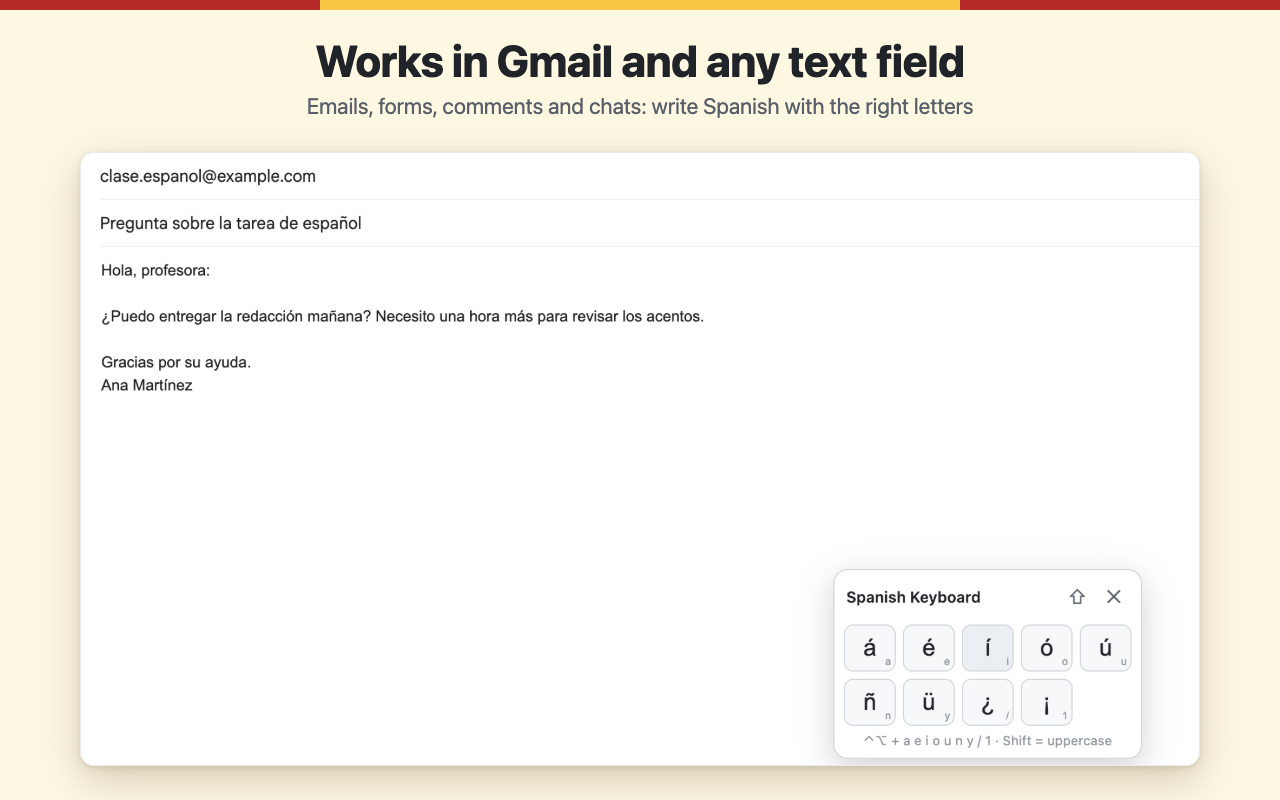
Google Docs, Gmail, and any regular text field on the web: comment boxes, forms, chat inputs, search bars and rich-text editors. If a site does not allow an extension to type into it, the character is copied to your clipboard instead and the panel tells you to press Ctrl+V (Cmd+V on a Mac).
Privacy
Spanish Keyboard collects no data: no analytics, no accounts, no tracking and no network requests, so it works offline. It asks for the minimum permissions (activeTab and scripting) and only runs on the tab where you open it. Read the full privacy policy.
Frequently asked questions
How do I type Spanish accents in Google Docs?
Click the Spanish Keyboard icon, click inside your document, then click the letter you need on the panel. Spanish accent marks (á, é, í, ó, ú) work the same way as ñ and ü. Ctrl+Z or Cmd+Z undoes an accent just like typed text.
How do I type ñ on a Mac?
Click ñ on the panel, or press Control+Option+N while the panel is open. Without the extension, the built-in Mac way is Option+N, then N. For accented vowels, press Option+E and then the vowel.
How do I type ñ on a Chromebook or Windows PC?
Click ñ on the panel, or press Alt+N. Without an extension, add the US International keyboard layout in your system settings: n with tilde (ñ) and accented vowels take two key presses.
How do I type an inverted question mark (¿)?
Click ¿ on the panel, or use the shortcut: Control+Option+/ on a Mac, Alt+/ on Windows, Linux and Chromebook. The inverted exclamation mark ¡ is the button next to it, shortcut key 1. On a Mac without the extension, ¿ is Option+Shift+/ and ¡ is Option+1.
Which Spanish characters are included?
á é í ó ú ñ ü ¿ ¡ and the capitals Á É Í Ó Ú Ñ Ü.
Does it work in dark mode?
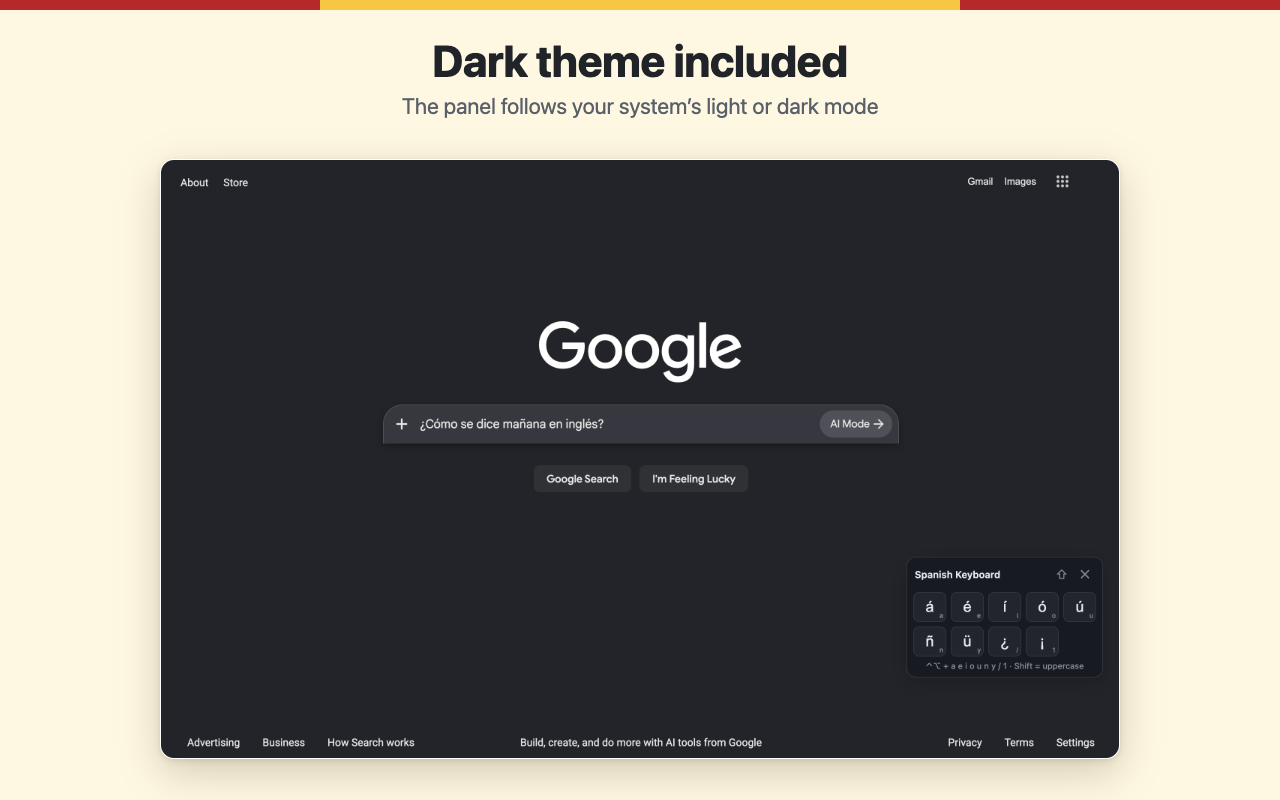
Yes. The panel follows your system light or dark theme.